
Battery management and display settings determine how long your Kindle lasts and how comfortably you read; these nine smart tips show you how to adjust brightness and timeout, use power-saving modes, manage background sync, pick efficient fonts and layout, and maintain your device so you get longer battery life and a smoother reading experience.
Key Takeaways:
- Adjust display and reading settings-lower front-light brightness, use warm light at night, and set comfortable font/spacing-to improve reading comfort and reduce unnecessary screen activity.
- Turn off wireless features (Airplane Mode) and Bluetooth and limit automatic syncing when not downloading books to preserve battery life.
- Use sleep covers or Auto-Lock, keep firmware updated, and avoid deep discharges to prolong overall battery health.
Optimize Your Display Settings
Fine-tuning your display reduces eye strain and stretches battery life: set front-light brightness to about 30-40% in well-lit rooms and 10-20% in dim conditions, switch to a warm tone after sunset (around 25-35% warmth), and pick a clear font like Bookerly or Ember with comfortable spacing to reduce page turns. With those changes, many users report converting heavy-use spans of a few days into a full week or more of reading per charge on E Ink Kindles.
Adjust Brightness for Comfort
Set brightness so pages look like paper, not a lamp-try 30-40% outdoors or in daylight and drop to 10-20% indoors at night; many readers find a 10-15% reduction cuts perceived glare without losing contrast. Use the auto-brightness and schedule features to let your Kindle lower light at sunset, which reduces both eye fatigue and the frequency of charging during multi-day reading sessions.
Switch to Dark Mode
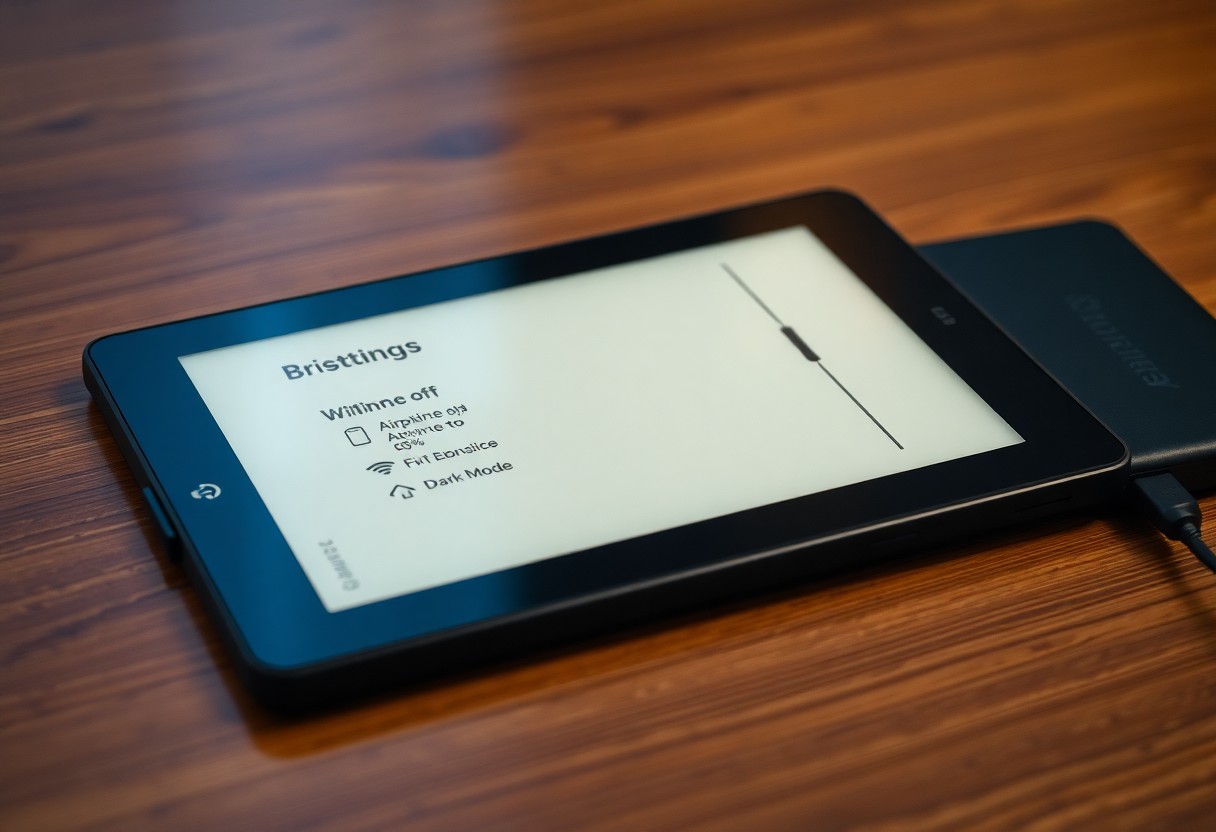
Use dark mode to reduce glare during night reading and make text pop against a dark background; on Kindle Fire or other LCD/OLED devices it can also lower display power consumption, sometimes by 20-60% on predominantly dark screens according to OLED studies. For E Ink Kindles, dark mode mainly improves comfort rather than battery life, but it’s worth testing for your eyes and habits.
In practice, enable dark mode for evening sessions and pair it with warm light to minimize blue light exposure; schedule it from sunset to sunrise if your model supports it. Note that inverted PDFs and images may lose clarity, highlights can appear different, and annotations remain visible but may feel less pronounced-try a 10-15 minute reading test to decide whether dark mode improves your comfort without hindering text clarity.

Manage Your Battery Life
Enable Airplane Mode
Switch Airplane Mode on when you’re not downloading books or syncing; it stops Wi‑Fi and Bluetooth from constantly searching and can add several hours to your session. For example, using Airplane Mode during a long flight or a multi‑hour commute often pushes device uptime from a few days toward the multi‑week claims Amazon publishes between full charges.
Reduce Connectivity Options
Turn off Bluetooth and Wi‑Fi when idle, set syncing to manual, and avoid automatic downloads to cut background activity. Disabling these radios prevents constant device discovery and server checks; many users see roughly 10-25% less drain during a full day of reading when connectivity is minimized.
Go into Settings to toggle Wi‑Fi and Bluetooth off, then use the sync/menu only when adding new content. You can also disable automatic book updates via your Amazon account (Manage Your Content and Devices) and remove completed titles from the device, which reduces storage scans and background checks and further conserves power.
Take Advantage of Kindle Features
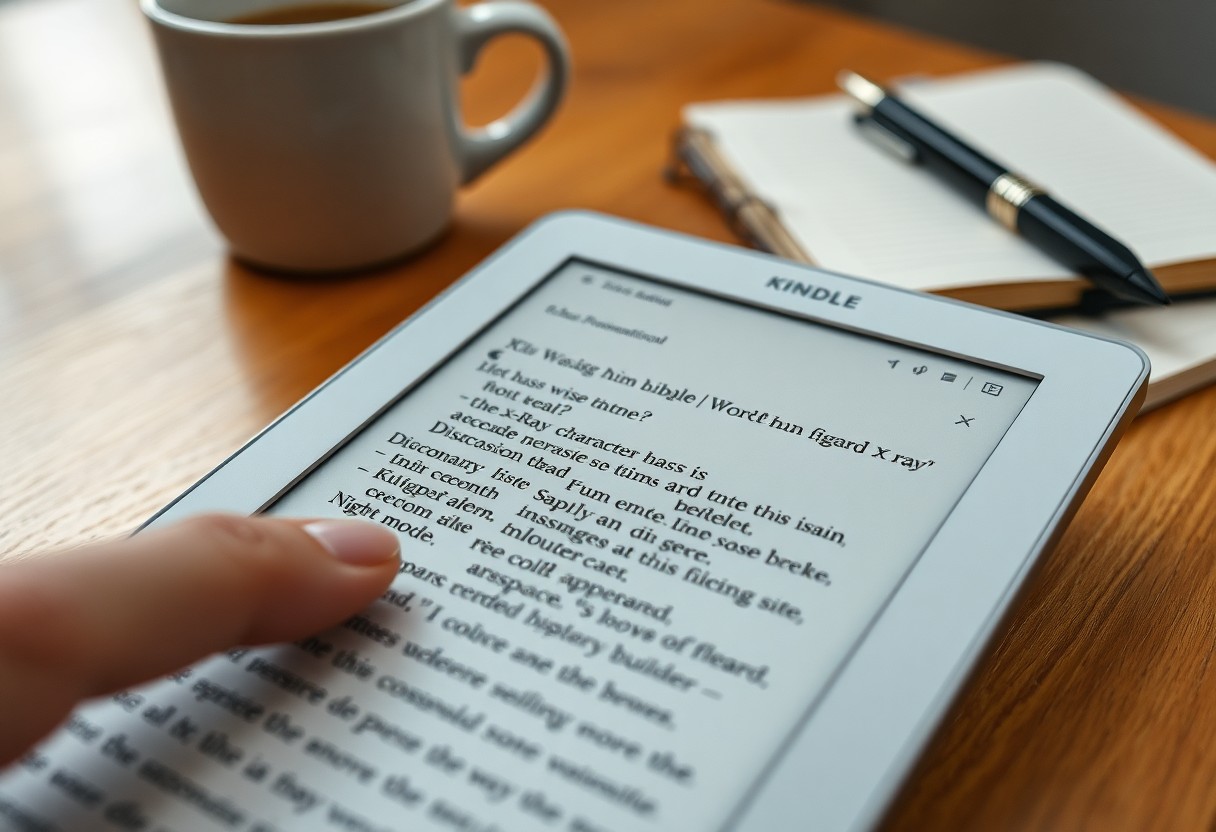
Tap into X‑Ray for quick character and topic summaries, use Whispersync to keep your last page, notes and highlights synced across devices, and pair with Audible for seamless audiobook handoffs. You can tweak font, line spacing and page refresh to reduce battery drain, use Goodreads integration to track ratings and lists, and enable translations or pronunciation guides when reading in another language.
Use the Built-in Dictionary
Explore Vocabulary Builder
Vocabulary Builder automatically collects words you look up and creates flashcards showing the original sentence and definition, plus multiple‑choice quizzes to test recall. Open Home > Menu > Vocabulary Builder to review; short daily sessions (10 minutes on ~20 words) improve retention more than passive highlighting.
Words are added when you consult the dictionary, then you can mark them as mastered or delete entries you’ve learned. During review, tap a card to reveal the definition and context, use quiz mode for active recall, and combine with exported highlights or Anki for spaced repetition if you want more rigorous study.
Organize Your Library Efficiently
You should keep a clean library so you can find titles instantly and avoid unnecessary on-device storage. Aim for collections with fewer than 50 items; they load faster and reduce scrolling. Use the built-in filters-Downloaded, Recent, Author-and sort by title or last opened to surface what you actually read.
Create Collections
You can create collections by long-pressing a cover and tapping “Add to Collection” or at Manage Your Content and Devices online; name them by project, genre, or priority. Try thematic sets like “Work: Reports,” “Weekend Fiction,” or “Reference,” and limit each to 30-50 items so navigation remains snappy.
Archive Unused Content
When storage gets tight, archive items with “Remove from Device” to move them to the cloud while keeping purchases intact; “Delete” removes them from your account. Many Kindle ebooks are 1-3 MB, so removing 100 unread books can free roughly 100-300 MB, and you can re-download archived titles anytime from Cloud.
If you haven’t opened a book in 12 months, filter by Last Opened and batch-remove to clear space quickly; audiobooks are costlier in storage-a 10-hour narration can occupy several hundred megabytes, so archiving them yields the biggest savings. Also export or sync highlights and notes before permanently deleting anything via Manage Your Content and Devices to avoid losing research.
Utilize Annotations and Highlights
Use highlights and notes to turn passive reading into an active reference: mark 1-2 key passages per chapter so a 15‑chapter book yields roughly 20-30 highlights you’ll actually review. Kindle stores annotations in the cloud and on‑device, makes them searchable, and lists them at kindle.amazon.com/your_highlights, so you can revisit themes, compile quotes for a paper, or train recall without flipping pages.
Make Meaningful Notes
When you add a note, keep it concise and contextual-one sentence (15-30 words) that explains why the passage matters. Start notes with a prefix like “Idea:” or “Q:” to filter later, include the chapter or brief page marker, and avoid transcribing large blocks; concise notes increase retrieval speed and make exported summaries far more useful for reviews or citations.
Sync Across Devices
Enable Whispersync so your last page, highlights and notes move across Kindle, smartphone, and tablet automatically; Whispersync lives under Manage Your Content and Devices > Preferences. Sync generally completes within seconds on Wi‑Fi, and you can force an update by tapping Sync on any device to push recent annotations to the cloud.
If annotations fail to appear, confirm you’re signed into the same Amazon account, Wi‑Fi is enabled, and Whispersync is turned on. For older Kindles use “Sync and Check for Items.” You can also export or view all highlights at kindle.amazon.com/your_highlights or in the Kindle app, which consolidates notes for copy/paste into documents or research tools.
Explore Kindle Unlimited and Prime Reading
Tap into Kindle Unlimited’s library of over 1 million titles (you can borrow up to 10 at a time) or use Prime Reading’s rotating selection of hundreds of books, magazines and comics included with Prime. You’ll save battery and storage by streaming samples or borrowing rather than downloading entire collections, and many KU titles include Audible narration or Whispersync, so you can switch between reading and listening without buying separate files.
Access a Wide Range of Books
When you search the Kindle Store, filter by “Kindle Unlimited” or “Prime Reading” to surface eligible titles across genres-from contemporary fiction and business to children’s series and graphic novels. Use curated lists like “Top KU Picks” and genre collections to find niche topics; sample the first 10-20% before borrowing, and exploit the 30‑day KU trial to test categories you wouldn’t normally try.
Discover New Authors Easily
Use Amazon’s “More by this author,” “Customers who bought this also bought,” and algorithmic recommendations to find debut writers similar to favorites; prioritize books with 4+ star averages and 50+ reviews to reduce misses. You can follow promising authors on their Amazon pages to get release alerts and add their early works to a saved list for later sampling on your Kindle.
Dig deeper by sampling multiple short works: download free samples or short KU novellas from new authors to gauge voice and pacing in 10-30 minutes. Combine that with Goodreads lists and reader-curated collections-many KU debuts appear on monthly “Indie Spotlight” lists-so you can track rising authors, monitor review velocity (e.g., 100+ recent reviews is a strong signal), and build a rotation of new voices without wasting purchases.
Final Words
With these considerations, you can optimize your Kindle experience and battery life by adjusting brightness and font settings, enabling power-saving features and airplane mode when appropriate, managing background syncing and collections, keeping firmware updated, using dark mode or warm-light scheduling, and carrying a backup charger. Apply these nine smart tips to read longer and more comfortably.
FAQ
Q: Which Kindle settings and quick actions save the most battery?
A: 1) Lower the front light and use the warm light only as needed – the front light is the biggest power draw; 2) Turn on Airplane Mode or disable Wi‑Fi and Bluetooth when you’re not syncing or downloading; 3) Turn off background syncing/automatic content checks and avoid the experimental browser or streaming audio; 4) Close the cover or put the device to sleep between sessions and avoid continuous-scrolling modes that keep the screen updating.
Q: How can I optimize display and navigation settings for better reading comfort and faster progress?
A: 5) Choose a reader-friendly font (Bookerly or Ember), adjust font size, line spacing and margins to increase reading speed and reduce eye strain; 6) Use Page Flip, X-Ray and Word Wise to navigate longer reads and clarify context quickly; 7) Use highlights, notes and the dictionary for active reading, and create collections or sort your library by Recent/Title to find books faster.
Q: What charging, storage and maintenance habits extend battery life and device longevity?
A: 8) Charge with a reliable USB charger and avoid exposing the device to extreme heat or cold; 9) For long-term storage keep the battery around 30-50% and install firmware updates when available; avoid leaving the Kindle constantly plugged in at 100% for extended periods and power-cycle occasionally to clear stalled processes.